


Grammarly AI Humanizer
Last month I opened a draft I’d made with an AI assistant and winced by the second sentence.
Nothing in it was wrong. It was just flat. Every paragraph opened with a neat little summary. Every list had exactly three items. It said “it’s important to note” twice. If you’ve ever read your own text and thought “I’d never say that out loud,” you know the feeling.
So I tried Grammarly’s AI Humanizer. I’d been using Grammarly for years to catch typos, but I’d ignored this feature until I saw it mentioned in a few writing forums. Here’s what I found, including a couple of things that surprised me.
What the Grammarly AI Humanizer actually is
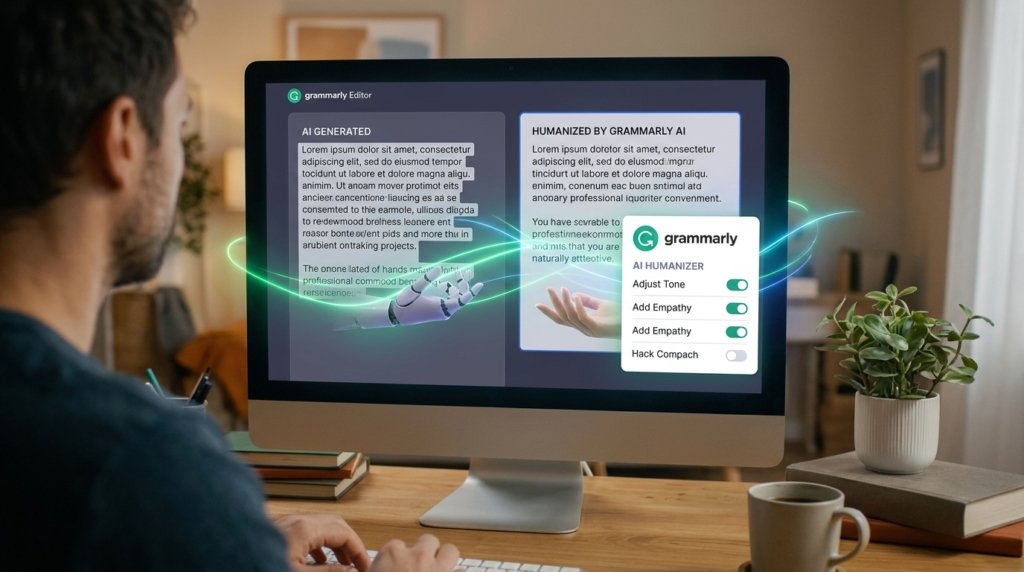
It’s not a magic “make this undetectable” button. Grammarly describes it as a tool that rewrites AI-generated text into clearer, more natural language while preserving the original meaning.
Think of it as an editor for text that sounds machine-made. You paste in a draft, pick a style, and it suggests a rewrite with smoother phrasing and less stiff wording.
A few things I liked right away:
- It offers four preset styles, so you can nudge the tone toward something like an everyday voice or a more executive one.
- You can paste a writing sample to create a custom voice, and it applies that style to future rewrites.
- It works in six languages: English, Spanish, French, German, Portuguese, and Italian.
Access depends on where you use it. Based on current reporting, it’s available to Free, Plus, and Pro users inside Superhuman Go and Grammarly’s docs writing surface, though plans and limits change, so check Grammarly’s own page before you count on a specific setup.
The thing nobody tells you about AI detectors
This is the part I wish I’d known earlier.
Grammarly itself says the Humanizer is not intended to bypass AI detectors. It’s built to improve readability, not to disguise where text came from.
There’s an even more interesting wrinkle. According to one write-up of Grammarly’s help center, text the Humanizer rewrites comes from Grammarly’s own language model, so Grammarly’s AI Detector is likely to flag it.
I laughed when I read that, then tested it on a paragraph. Sure enough, my “humanized” text didn’t suddenly look human to a detector. That was a useful reality check.
My takeaway: if your goal is to beat a detector, this isn’t the tool, and honestly, no tool should be trusted for that. Detectors are inconsistent, and chasing a score is a distraction. Aim for writing that’s accurate and sounds like a real person, and the rest takes care of itself.
How I actually use it (step by step)
After some trial and error, here’s the routine that works for me.
Step 1: Start with your own ideas.
Even if an AI wrote the first pass, make sure the real substance is yours. Add a story, an opinion, or a detail only you would know. No humanizer can invent those.
Step 2: Work in small chunks.
I paste one or two paragraphs at a time. Long inputs make it harder to spot when the meaning drifts.
Step 3: Pick the style that fits.
For a casual blog post I choose the friendlier option. For a work email I go more polished. Switching styles on the same paragraph is a quick way to see what sounds closest to you.
Step 4: Try the custom voice.
This was the feature that made the biggest difference. I pasted in a few paragraphs I’d written myself, and the rewrites started to sound less generic. It’s not perfect, but it’s a real step up from the default.
Step 5: Compare side by side.
Don’t just accept the output. Keep the original open and take the good bits. I usually keep some sentences exactly as the tool rewrote them, tweak others, and ignore the rest.
Step 6: Read it out loud.
Still the best test I know. If you trip over a sentence or it sounds like a brochure, rewrite it by hand.
Step 7: Fact-check.
Numbers, names, dates, and claims. Any rewrite tool can shift a meaning slightly, and you’re the one whose name is on it.
Where it genuinely helped
An email that sounded like a robot wrote it. I had a client follow-up drafted with AI that was technically fine and emotionally empty. The humanized version was warmer, with shorter sentences and less corporate padding.
A blog intro that opened the same way as every AI intro. You know the type: a sweeping statement followed by a neat promise. The tool loosened it up, and that gave me a starting point to rewrite it in my own words.
Non-English drafts. I’m not fluent in everything, but running a Spanish message through the Humanizer produced something that read less stiffly than the literal version. If you write in more than one language, that’s worth trying, though I’d have a native speaker review anything important.
Where it fell short
Rhythm gets samey. The output tends toward medium-length, tidy sentences. After a few paragraphs, everything has the same beat. I deliberately add a short sentence. Or a long one that takes a scenic route before landing somewhere.
It can’t fix weak ideas. If the underlying draft says nothing new, a humanizer just makes empty text sound nicer. That was a good lesson for me.
Detector results didn’t improve. As above, don’t expect it to change how detectors score your text.
Mistakes to avoid
Using it to hide AI use where it’s not allowed. Grammarly’s own page notes that humanizers can be frowned upon in certain contexts and recommends following the guidelines for acknowledging AI use. Schools and workplaces have different rules. If you’re unsure, ask first.
Pasting confidential material. Client names, contracts, private data: think twice before putting them into any online tool. Strip out sensitive details or check the privacy settings.
Publishing without reading. I’ve caught awkward phrasing and subtle meaning changes in “finished” output more than once. A two-minute read-through is cheap insurance.
Treating it as a replacement for writing. The best results came when I did the thinking and used the tool to polish. When I flipped that, the writing was technically smooth and totally forgettable.
If you need to show your work
One feature worth knowing about is Authorship. Grammarly says it shows what came from AI, what came from online sources, and what you wrote yourself. If you’re a student or work somewhere that asks for transparency, that’s a more honest route than trying to hide where text came from.
Quick checklist before you hit send or publish
- Does it still say what I meant?
- Are the facts, numbers, and names right?
- Does it sound like me when I read it aloud?
- Did I add something original, like an example, an opinion, or a lesson?
- Am I following the rules for AI use in this situation?
If you can answer yes to all five, you’re in good shape.
Where I ended up
I still use Grammarly’s Humanizer, but I think of it as a decent first editor, not a finishing machine. It’s good at sanding off the most obvious robotic phrasing. It’s not good at judgment, humor, or knowing what you really meant.
If you want to try it, take one paragraph you’re not happy with and run it through. Then edit the result until it sounds like something you’d say to a friend. It takes about five minutes, and you’ll learn quickly where it helps and where you need to step in.








Leave a Reply