


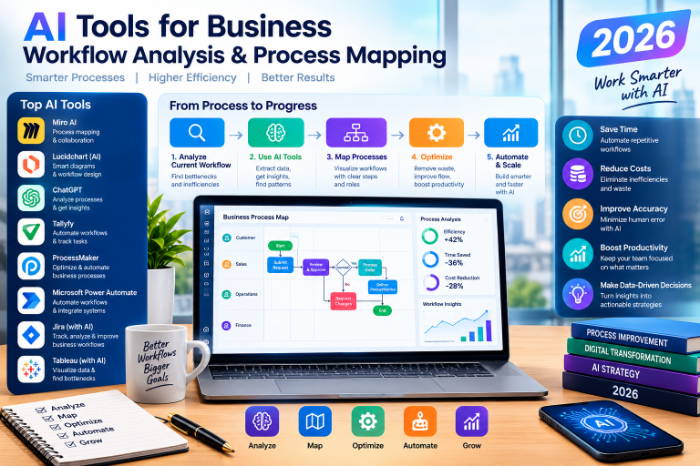
AI Tools For Business Workflow Analysis Process Mapping 2026
AI Tools for Business Workflow Analysis and Process Mapping: What Actually Worked for Me
A few months ago, I sat in a meeting where five people described the same invoice approval process in five different ways. Nobody was lying. Everyone just remembered their own part.
Finance said it took two days. Operations said it took a week. The person who actually clicked “approve” said, “Honestly, it depends who’s on holiday.”
That was the moment I stopped trusting whiteboard sessions as my only source of truth, and started testing AI tools for workflow analysis and process mapping. Some of it was genuinely useful. Some of it was a waste of a weekend. Here’s what I learned, so you can skip the slow parts.
Why process mapping is harder than it looks
Mapping a process sounds simple: draw boxes, connect arrows, done. In reality, the hard part isn’t drawing. It’s finding out what really happens, as opposed to what people think happens.
Most workflows have hidden steps:
- A manager who quietly rechecks every spreadsheet
- A “temporary” email chain that has run for three years
- A copy-paste step between two tools that nobody questioned
AI helps in two places. It speeds up the boring parts (drafting, cleaning up, summarizing). And in some cases, it pulls evidence from real system data instead of memory. That second one is where the real value is.
The three kinds of AI tools (they solve different problems)
I wasted time early on because I treated every tool as if it did the same job. They don’t. In 2026, most tools fall into three groups.
1. AI diagramming tools. These turn a text description into a flowchart. Lucidchart, Miro, Whimsical, and Microsoft Visio all have AI-assisted features now. You type “customer refund request goes to support, then finance approves if over a certain amount,” and you get a draft diagram.
2. AI assistants for analysis. ChatGPT, Claude, Gemini, and Microsoft Copilot are good at taking messy notes, interview transcripts, or SOP documents and turning them into structured steps, bottleneck lists, and questions you forgot to ask.
3. Process mining tools. Celonis, UiPath Process Mining, and SAP Signavio read event logs from systems like ERP or CRM software and show how work actually flows, including the weird detours. These are powerful, but they’re usually aimed at larger companies and need clean data.
Most small teams only need the first two. If you have a big ERP system and thousands of transactions a month, look at the third.
My step-by-step method
This is the approach I settled on after a lot of trial and error
Step 1:
My first attempt was “map everything in operations.” Three weeks later I had forty half-finished diagrams and no clear findings.
Start with one process that causes visible pain. Good candidates are invoice approval, employee onboarding, customer support escalation, or purchase requests. Choose something that happens often and annoys people.
Step 2: Collect the raw material
Gather whatever exists:
- Existing SOPs or checklists (even outdated ones)
- Email threads about the process
- Short notes from conversations with the people who do the work
- Screenshots or screen recordings of the actual steps
Tools like Scribe and Tango are handy here. You click through a task and they automatically capture each step with screenshots. It’s a quick way to document what someone really does, not what the manual says.
Step 3: Let AI organize the mess
Paste your notes into an AI assistant and ask something specific
the steps in order, flag any steps where the descriptions disagree, and list questions I should ask to clear up the gaps.”
The “flag disagreements” part matters. In my case, the AI immediately highlighted that two people described the approval threshold differently. That would have taken me hours to spot by hand.
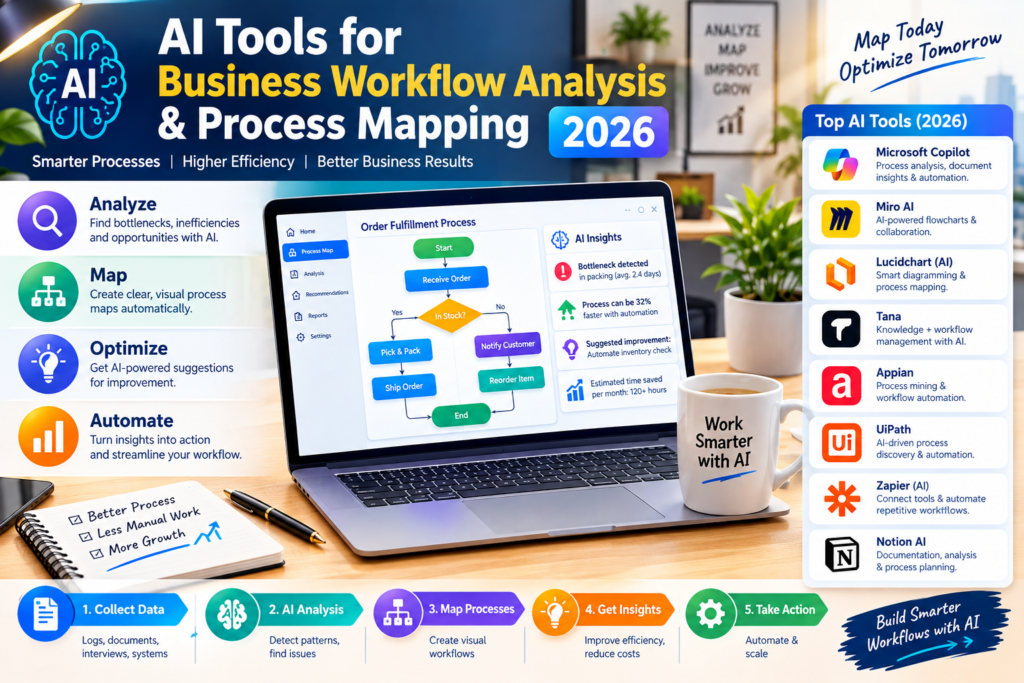
Step 4: Generate a draft map, then fix it
Feed the cleaned-up steps into a diagramming tool with AI support. You’ll get a first draft in a minute or two.
Treat it as a draft only. The first version I got looked tidy and professional, and it was wrong. It skipped a rework loop where rejected invoices go back to the requester. Which brings me to the important rule.
Step 5:
Show the diagram to the actual team members. Ask, “What’s missing? What do you do that isn’t here?”
This is the single most valuable step, and no AI replaces it. People will point at the screen and say, “Oh, we also do this thing on Fridays.” That’s the stuff that explains your delays.
Step 6: Look for bottlenecks and ask AI for ideas
Once the map is accurate, mark where time is lost: waiting for approvals, repeating data entry, handoffs between departments.
Then ask your AI assistant to suggest improvements. Ask for several options with trade-offs, not “the best fix.” You’ll get ideas like merging approval levels, adding automatic reminders, or using Zapier or Make to connect tools and remove copy-paste work.
Pick one change, test it for a couple of weeks, and measure the result.
A real-world example
Here’s a simplified version of what happened with that invoice process.
The AI-assisted analysis showed that invoices bounced between two people three times on average, mostly because a purchase order number was missing. Nobody had noticed because each bounce looked like a small delay.
The fix wasn’t fancy. We made the PO number a required field on the submission form, and set an automatic reminder for pending approvals. No giant software project, just two small changes found by looking at the process clearly.
I won’t claim a magic percentage improvement, because results depend heavily on your situation. But the back-and-forth dropped noticeably, and people stopped complaining about it in meetings. That was the real measure for me.
Choosing a tool without overspending
A rough guide based on team size and needs:
| Your situation | Where I’d start |
| Solo or tiny team, just need clear diagrams | Whimsical, Miro, or Lucidchart with AI features |
| Already live in Microsoft 365 | Visio plus Copilot |
| Need to document steps quickly | Scribe or Tango |
| Messy notes and interviews to organize | ChatGPT, Claude, or Gemini |
| Large company with ERP or CRM data | Celonis, Signavio, or UiPath Process Mining |
| Want to automate after mapping | Zapier, Make, or Power Automate |
Features and pricing change quickly, so check each vendor’s current plans and try the free tier or trial before committing. Most offer one.
Mistakes I made
Trusting the AI diagram without checking it. AI tools produce clean, confident-looking maps even when they’re wrong. A neat diagram is not a correct one.
Pasting sensitive data into public tools. Early on, I almost pasted real customer details into an AI chat. Don’t. Remove names, account numbers, and anything confidential, or use a business plan with proper data controls. Check your company’s policy first.
Mapping the ideal process. People naturally describe how things should work.
Skipping the people. Tools can organize information, but they can’t know that Sarah quietly fixes errors before they reach the next stage. Talk to the humans.
Automating a broken process. If a workflow is confusing, automation just makes it confusing faster. Simplify first, automate second.
Over-engineering the diagram. My first maps had so many symbols and swimlanes that nobody read them. A simple map that people actually use beats a perfect one that sits in a folder.
Quick tips that saved me time
- Ask AI to rewrite your process in plain language, then check whether a new employee could follow it.
- Keep a short “questions to verify” list as you go, and answer it in the team walkthrough.
- Save your good prompts. I reuse the same three for every new process.
- Date your maps. A process diagram from last year is probably already out of date.
- Review a process again after a few months. Workflows drift.
Final thoughts
AI hasn’t replaced the slow, human part of process mapping, and I’d be suspicious of any tool that claims it has. What it does well is the grunt work: sorting messy notes, spotting contradictions, drafting diagrams, and suggesting ideas you can test.
If you’re starting from zero, pick one annoying process this week. Gather your notes, let an AI assistant organize them, build a rough map, and then sit down with the people who do the work and fix it together.
You’ll probably find something surprising within the first hour. I did, and it was a missing PO number.








Leave a Reply