


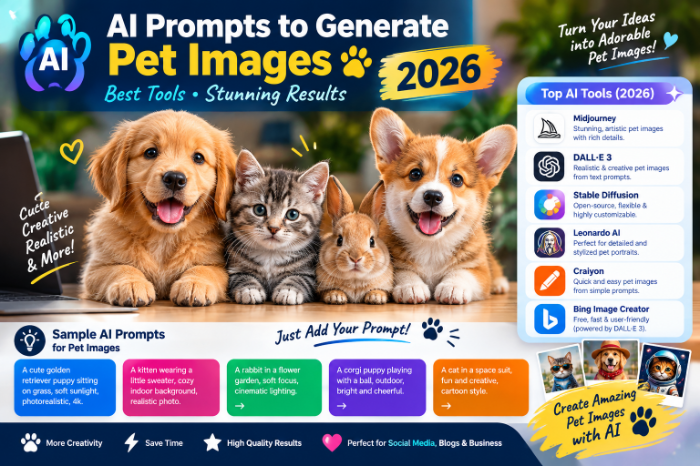
AI Prompts To Generate Pet Images Tools
AI Prompts to Generate Pet Images: What Worked, What Didn’t, and the Tools I’d Start With
My first attempt at an AI pet portrait was supposed to be my friend’s golden retriever in a cozy living room.
What I got was a golden retriever with a slightly melted face, five legs, and a sofa that looked like it was made of wet bread.
It was funny, but it wasn’t useful. After a lot of tinkering, I figured out that the difference between a weird image and a gorgeous one is almost always the prompt. Here’s what I learned, in plain language, so you can skip the five-legged phase.
Why pet images are tricky for AI
Fur texture, paws, whiskers, eyes, and body proportions all have to line up. Small errors are easy to spot because we all know what a dog or cat is supposed to look like.
The good news is that newer tools have improved a lot. The better news is that a clear prompt fixes most problems.
The tools worth trying
I tested a handful of options. These are the ones I’d actually recommend, depending on what you want.
ChatGPT (image generation). Great for beginners because you can chat with it. If the first result is off, you just say “make the fur fluffier” or “change the background to a park.” It understands plain English well.
Midjourney. Often produces the most artistic and polished results. It has a learning curve and a paid plan, but for stylized portraits it’s hard to beat.
Google Gemini and Imagen-based tools. Convenient if you already use Google’s tools, and good at realistic scenes.
Adobe Firefly. A solid choice if you care about commercially safe usage, and it fits nicely into Photoshop and Express.
Canva (Magic Media). The easiest option for non-designers. Good for quick social posts, greeting cards, and simple designs.
Leonardo AI and Stable Diffusion-based tools. More control and customization, but a bit more to learn.
Features and pricing change often, so check each tool’s current plans and try the free options first.
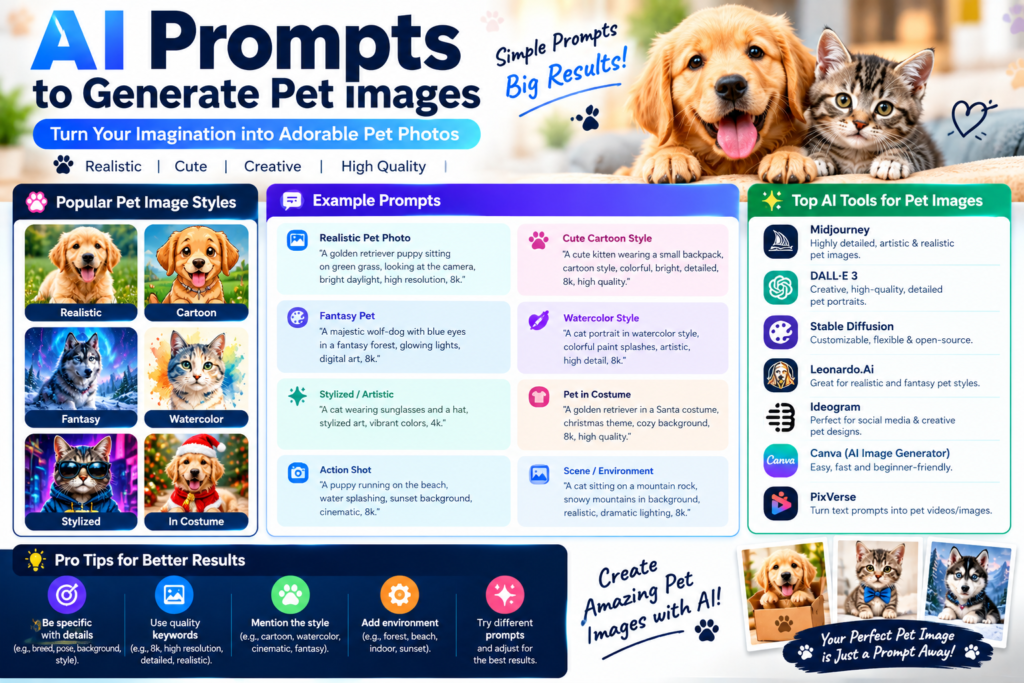
The simple formula I use for every prompt
After many bad results, I settled on a basic structure:
Subject + details + setting + lighting + style + camera feel
Here’s how it works in practice:
- Subject: What animal, breed, age, and color?
- Details: Expression, pose, and what it’s doing.
- Setting: Where is it?
- Lighting: Soft morning light, warm sunset, studio light?
- Style: Realistic photo, watercolor, cartoon, oil painting?
- Camera feel: Close-up portrait, wide shot, shallow depth of field?
You don’t need all six every time.
Step-by-step: building a prompt from scratch
Let’s say you want a nice image of a cat.
Step 1: Start with specifics, not “a cat”
Weak: “A cat”
Breed, color, and eye color make a big difference.
Step 2: Add what the pet is doing
“A fluffy orange tabby cat with green eyes, curled up asleep on a knitted blanket”
Action and posture give the image personality. Simple poses also reduce errors. A sleeping cat is easier for the AI to draw than a cat doing a backflip.
Step 3: Set the scene and lighting
Lighting is the secret ingredient. Soft natural light almost always looks better than flat, bright light.
Step 4: Choose the style
“…realistic photograph, shallow depth of field, shot with a 50mm lens” AI Prompts To Generate Pet Images Tools
Or if you want something illustrated: “soft watercolor illustration, pastel colors.”
Step 5: Generate, review, and tweak one thing at a time
This is where people go wrong. Adjust one detail per round.
Copy-paste prompts to try
Holiday card:
“A fluffy white cat wearing a small red scarf, sitting beside a Christmas tree with warm lights, cozy and festive, realistic style.”
Pet in a fantasy setting (just for fun):
“A small pug dressed as a knight, standing in a castle courtyard, storybook illustration style, warm colors.”
Making it look like your actual pet
This was the part I cared about most, and it took the longest to get right.
Some tools let you upload a reference photo. If yours does, try this:
- Upload a clear, well-lit photo of your pet’s face.
- Ask the tool to keep the same markings, fur color, and face shape.
- Then describe the new scene or style you want.
Describe unique features in words, too. Mention the white paw, the crooked ear, or the black spot near the nose. Those details are what make it look like your pet.
Don’t expect a perfect match every time. Results vary, and it often takes a few tries. AI Prompts To Generate Pet Images Tools
Mistakes I made (so you can avoid them)
Writing prompts that are too short. “Cute dog” gives the AI too much freedom. Specific beats short.
Cramming in too much. The opposite problem also happens. A giant paragraph with twelve ideas can confuse the tool.
Ignoring paws and faces. Weird paws are the classic giveaway. Prompts that keep paws partly hidden (resting under the chin, tucked into a blanket) often avoid the problem. Or just generate again.
Asking for complicated action. Running, jumping, and playing with other animals leads to more errors than calm poses.
Forgetting about the background. Messy backgrounds can distract from the pet.
Using real names and brands. Avoid asking for specific copyrighted characters or artists’ styles. Describe the look you want instead: “soft pastel storybook illustration” works fine.
Not checking the details. Count the legs. Look at the eyes. Zoom in on the paws. It takes ten seconds and saves embarrassment.
A few practical use cases
People use these images for lots of reasons:
- Social media posts and profile pictures
- Greeting cards and birthday invitations
- Printed art or a keepsake for a pet that has passed away
- Small business branding for pet shops, groomers, and walkers
- Children’s storybook illustrations
If you plan to sell or publish images commercially, read the terms of the tool you’re using. Usage rights differ from one platform to another. AI Prompts To Generate Pet Images Tools
A few quick tips that made a real difference
- Add words like “soft lighting” or “natural light.” It improves almost everything.
- Say “realistic photograph” if you want realism. Without it, you might get something that looks painted.
- Keep a note on your phone with prompts that worked. I reuse the same skeleton every time.
- Generate several versions and pick the best. Even good prompts produce a dud now and then.
- Be kind to yourself. The five-legged dog phase is normal.
Final thoughts
The biggest surprise for me was how much of this comes down to describing things clearly, not technical skill. If you can explain your pet to a friend, you can write a good prompt.
Start simple. Pick one tool, use the formula above, and tweak one detail at a time. Within an hour or so, you’ll probably have a result you actually want to share.
And if the sofa still looks like wet bread, just try again.








Leave a Reply