


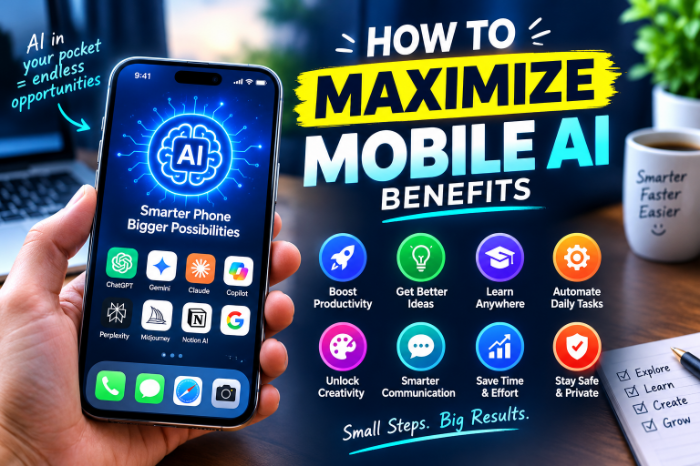
How To Maximize Mobile AI Benefits
How to Maximize Mobile AI Benefits: What Actually Worked for Me
Meta description: Practical, tested ways to get more out of the AI features already on your phone, from voice notes and translation to smart search, with the mistakes I made so you can skip them.
A few months ago I was standing in a crowded market, trying to haggle in a language I barely speak, while my phone sat in my pocket doing absolutely nothing useful.
It had AI features. I knew that. The box said so. But I had never turned most of them on, and the few I had tried felt like party tricks.That day bugged me enough that I spent the next few weeks testing what my phone could really do. Some of it was genuinely life-changing. Some of it was a waste of battery. This post is everything I learned, so you can skip the slow part.
First, figure out what your phone already has
This sounds obvious, but I skipped it for almost a year.
Most recent phones ship with AI built in, and most people never open it. Here is what I found when I finally went digging:
- Samsung Galaxy phones have Galaxy AI tools like Live Translate, Note Assist and Circle to Search.
- Google Pixel phones have Gemini, the Recorder app with transcription, Call Screen and Magic Eraser in Google Photos.
- iPhones with Apple Intelligence offer writing tools, notification summaries and smarter search in Photos.
Which features you get depends on your model, region and software version, so open Settings and search for “AI” or “Intelligence”. Ten minutes there showed me three tools I had been paying no attention to.
You also do not need a flagship. Apps like ChatGPT, Gemini, Claude, Microsoft Copilot and Google Lens work on most modern phones, so you can start with whatever you have.
Start with one problem, not ten apps
Here is my first mistake. I downloaded about eight AI apps in one evening, felt productive, and used none of them the next week.
What worked instead was picking one annoying thing in my day and fixing only that.
For me, it was meetings. I would leave a call, forget half the action items, and spend twenty minutes trying to remember who promised what.
So I tried voice transcription. On a Pixel, the Recorder app transcribes as you record. On other phones, apps like Otter work well. I recorded a short team call (after asking everyone, which matters), got a transcript, and asked an AI assistant to pull out action items.
It was not perfect. It misspelled a colleague’s name twice. But it turned twenty minutes of guessing into two minutes of checking.
Pick your own annoying thing. Then fix that one thing before adding anything else.
Learn to talk to your assistant properly
They type something vague, get a vague answer, and decide AI is overrated.
I did exactly that for weeks. “Help me plan my week” got me a useless generic schedule.
When I changed to this, everything improved: “I work from home Monday to Thursday, have a gym slot I keep skipping, and need to finish a client report by Friday. Build a realistic week and tell me where I am overloading myself.”
The difference is context. Here is the simple pattern I use now:
- Say who you are or what situation you are in. One sentence is enough.
- State the actual goal. Not the topic, the result you want.
- Add limits. Time, budget, tone, length.
- Ask it to ask you questions if something is unclear.
That last one is underrated.
Use voice, because your thumbs are slow
Typing long prompts on a phone is miserable, and I think that is why many people give up.
Switching to voice changed how much I used AI. I now ramble my request out loud while walking or cooking, and the assistant sorts it out. Messy input works fine. You do not need perfect sentences.

A small tip: if your assistant has a voice mode, use it for brainstorming. I talk through ideas for blog posts while doing dishes, and the back and forth often gives me better angles than staring at a blank page.
Real situations where mobile AI paid off
Travel and language
Back to that market. Later, I tested Live Translate-style features and Google Translate’s camera mode on menus and signs. Camera translation is the one I use most. Point, read, done.
For actual conversations, it is slower than talking to a person, and idioms trip it up. But for ordering food, asking directions or reading a train timetable, it removed a lot of stress.
Shopping and research
Circle to Search on supported Android phones and Google Lens on almost any phone are great for “what is that thing” moments. I used it to identify a plant, a part for a broken kettle, and a pair of shoes I saw on someone at the airport.
It is not always right, so I treat results as a starting point and check the product page before buying.
Photos
I used to leave photo editing alone because it felt like a skill I lacked. Tools like Magic Eraser or similar object removal features made quick cleanup easy. Removing a stranger from the background of a family photo took about ten seconds.
One warning: AI edits can look slightly off when you zoom in. I only use them for casual sharing, and I keep the original.
Writing and messages
I use AI to tidy emails, shorten long replies and soften messages when I am annoyed. That last one has probably saved a friendship or two.
I do not let it write things that need to sound like me without editing. Early on I sent a message that was obviously not my voice, and a friend replied, “Did you swallow a corporate handbook?” Lesson learned.
Summaries
Long articles, PDFs and notification piles can be summarised. This is useful when you need the gist fast. But summaries can miss nuance or get details wrong, so I always read the original when something matters, like a contract, a medical note or anything involving money.
Settings that quietly make a big difference
These small tweaks improved my experience more than any new app:
- Update your phone. Many AI features arrive through system updates, not new hardware.
- Turn on the keyboard tools. Rewrite and proofread options live right where you type.
- Check on-device versus cloud. Some features run on your phone, others send data online. Knowing which helps you decide what is safe to use.
- Allow notifications selectively. AI summaries of noisy group chats are great, but only if you have trimmed the apps that spam you.
- Download language packs before travelling, so translation works offline.
Be careful with privacy
I learned this one the slightly uncomfortable way. I once pasted a long work document into an AI chat without thinking, then realised it included client details.
Nothing bad happened, but I changed my habits right away. Now I follow a simple rule: if I would not email it to a stranger, I do not paste it into an AI tool unless I have checked the privacy settings and my workplace allows it.
Take a few minutes to review what each app stores, whether chat history can be turned off, and whether your data may be used to improve the service. Policies differ and change, so check the current settings in the app itself.
Common mistakes to avoid
Trusting answers blindly. AI can sound very sure while being wrong. I once got a confident restaurant recommendation for a place that had closed. Verify anything involving money, health, legal matters or travel plans.
Installing too many apps. More tools mean more notifications, more permissions and more clutter. Two or three you actually use beat ten you forgot.
Giving vague instructions. If the answer is bad, your prompt usually needs more detail before the tool is at fault.
Ignoring battery impact. Constant voice assistants and heavy on-device processing can drain a battery faster than you expect. If your phone dies by evening, check which AI features run in the background.
Using it instead of thinking. The best results came when I used AI as a sparring partner, not a replacement for my own judgement.
A simple one-week plan to get started
If you want a practical way in, try this:
- Day 1: Update your phone and look through the AI settings. Note what is available.
- Day 2: Pick one daily annoyance you want to fix.
- Day 3: Try one tool for that problem and write one detailed prompt using the context, goal and limits pattern.
- Day 4: Try voice input for the same task.
- Day 5: Test one feature outside your usual routine, like camera translation or object identification.
- Day 6: Review privacy settings for any app you used.
- Day 7: Keep what saved you time. Delete what did not.
That last step matters. Not every feature deserves a place on your phone.
Where I ended up
The biggest surprise for me was that the benefit did not come from fancy features. It came from small, boring wins: a transcript instead of messy notes, a translated menu, a rewritten email that sounded kinder.
Those few minutes saved each day added up to something I actually noticed.
I still double-check everything important, and I still occasionally get a strange answer that makes me laugh. But my phone finally feels like it is working for me, instead of just sitting in my pocket.
Try one thing this week. Pick the task that annoys you most and see if your phone can take it off your plate. If it works, build from there. If it does not, you have lost ten minutes and learned something about what you actually need.
And if you have a mobile AI trick that changed your routine, I would genuinely like to hear it.








Leave a Reply