


Does Google Drive Work With An AI Tool
Does Google Drive Actually Work With AI Tools? Here’s What I Found Out After Testing It For Weeks
Last month I had 47 PDFs, 12 Google Docs, and a spreadsheet mess sitting in my Drive that I needed summarized before a client meeting. My first instinct? Copy-paste everything into ChatGPT one file at a time.
Three hours later, I was ready to throw my laptop out the window.
That’s when a friend asked me, “Why aren’t you just connecting an AI tool directly to your Drive?” I spent the next few weeks testing every method I could find — some worked beautifully, some were a total waste of time, and one almost gave me a heart attack when I thought I’d deleted a client folder (spoiler: I hadn’t, I just didn’t understand permissions).
Here’s everything I learned, minus the panic.
So, Does Google Drive Actually Connect With AI Tools?
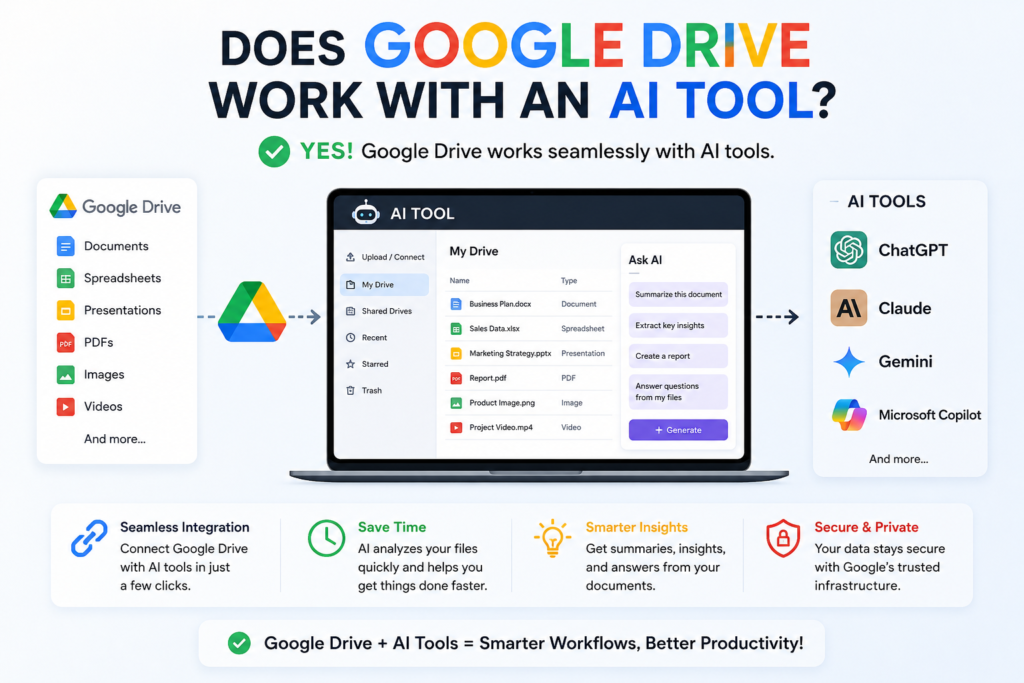
Short answer: yes, and honestly better than I expected.
Longer answer: it depends heavily on which AI tool you’re using and how you set things up. Some connections are smooth and genuinely save you hours. Others feel like a workaround that Google and the AI company haven’t quite finished agreeing on.
I tested this with Claude, ChatGPT, Gemini (obviously, since it’s Google’s own), and a couple of smaller tools like Notion AI.
What Actually Worked For Me
Gemini + Google Drive (The Obvious One)
This one makes sense since Google owns both. If you’re using Gemini inside Google Workspace, it can read your Docs, Sheets, and Slides directly without you exporting or uploading anything.
I used it to summarize a 20-page project proposal sitting in my Drive, and it pulled the content instantly. No copy-pasting, no formatting issues. It just worked.
The catch? Gemini sometimes struggles with older Docs that have weird formatting from years of edits. I had one document with tracked changes from three different people, and it got a bit confused about what was final content versus suggestions.
Claude With File Uploads
Claude doesn’t have a native “browse my Drive” button the way Gemini does, but you can upload files directly from your Drive (or your desktop after downloading from Drive) and it handles them really well — especially PDFs and spreadsheets.
I uploaded a messy budget spreadsheet with multiple tabs, and it actually understood the structure better than I expected. It flagged an inconsistency in my formulas that I’d genuinely missed. That was a nice surprise.
The downside is the extra step of downloading from Drive first if you’re not using a connector. Minor annoyance, not a dealbreaker.
ChatGPT With Google Drive Connector
If you’re on a paid ChatGPT plan, there’s a Drive connector you can enable through settings. Once I set it up, I could ask ChatGPT to pull specific files by name and analyze them without manually uploading anything.
This saved me the most time out of everything I tried. I had it go through a folder of client contracts and flag any clauses about payment terms. It found things across multiple documents in about two minutes — a task that would’ve taken me half an hour of manual searching.
The Mistake I Made (So You Don’t Have To)
Here’s where I messed up. When I first connected an AI tool to my Drive, I gave it access to my entire Drive instead of a specific folder.
Big mistake.
It started pulling in old personal files, random screenshots, and even a half-finished resignation letter I’d drafted years ago and forgot to delete (awkward). Nothing bad happened, but it made me realize how important it is to be intentional about what you’re connecting.
Lesson learned: Always create a dedicated folder for AI-related work and only give access to that folder, not your whole Drive. It keeps things clean and way less stressful.
Step-By-Step: How To Connect Google Drive With An AI Tool Properly
If you want to try this yourself without my rookie mistakes, here’s the process I’d recommend now:
Step 1: Create a specific folder in Drive Name it something clear like “AI-Workspace” and move only the files you actually want the AI to access into it.
Step 2: Choose your AI tool based on your actual need
- Need deep Google Workspace integration? Go with Gemini.
- Need strong document analysis and reasoning? Claude handles complex files well.
- Need automation across multiple files quickly? ChatGPT’s Drive connector is solid.
Step 3: Enable the connector properly For ChatGPT, this is under Settings > Connectors. For Gemini, it’s built into Workspace already if you’re using a Google Workspace account. Claude currently works best with direct uploads unless you’re using it through certain enterprise integrations.
Step 4: Test with one file first Don’t dump 50 files in right away. Upload or connect one document, see how the AI handles it, check for accuracy, then scale up.
Step 5: Double-check permissions Go back and confirm exactly what the AI tool can see. This takes two minutes and saves you from my resignation-letter situation.
Real Example: How This Helped My Actual Workflow
I run a small content business, and every week I used to manually go through client feedback documents scattered across Drive folders. It was tedious and honestly kind of soul-crushing on a Monday morning.
Now, I keep all feedback docs in one connected folder. I ask the AI tool to summarize the key points, list action items, and flag anything urgent. What used to take 45 minutes now takes about 5.
Another example: a friend who’s a teacher started using this same method for her lesson plans stored in Drive. She has the AI review old lesson plans and suggest updates based on current curriculum changes. She said it’s like having a teaching assistant who never gets tired.
Common Mistakes People Make (Besides Mine)
Assuming every AI tool has direct Drive access. Not all of them do. Some require manual uploads, and that’s fine, it’s just something to know beforehand so you’re not confused when there’s no “connect Drive” button.
Ignoring file format issues. Google Docs, Sheets, and Slides sometimes need to be exported as PDF or DOCX for certain AI tools to read them properly. If something isn’t working, check the format first before assuming the tool is broken.
Not reviewing AI output for accuracy. This is a big one. AI tools are genuinely helpful, but they can misread context, especially in documents with lots of comments, edits, or unusual formatting. Always skim the output before using it for anything important.
Overloading it with too many files at once. I tried connecting a folder with 80+ documents once, thinking it’d handle everything smoothly. It got sluggish and started missing details. Smaller batches work better.
Is It Actually Worth Setting Up?
For me, yes, without a doubt. But it depends on how much you’re actually using Google Drive for real work versus just storing random files there.
If you’re someone who has years of scattered documents, reports, and notes sitting in Drive and you keep meaning to organize them “someday,” connecting an AI tool can genuinely save you hours. It’s not magic, and it won’t replace actually understanding your own documents, but it cuts down on the tedious searching and summarizing that eats up so much time.
If your Drive usage is minimal, honestly, it might not be worth the setup effort. There’s no point connecting an AI tool to three random files you check once a month.
Final Thoughts
I went into this expecting a clunky, half-working integration and came out actually impressed. The connection between Google Drive and AI tools has gotten a lot smoother than I anticipated, especially over the last year.
Just don’t do what I did and give an AI tool access to your entire Drive on day one. Start small, use a dedicated folder, and actually check what the AI is pulling in before you rely on it for anything important.
If you’re on the fence about trying this, just test it with one folder and one task this week. You’ll know within twenty minutes whether it’s going to save you time or not.








Leave a Reply