



Claude AI Remove Some Tools
I Turned Off Half of Claude’s Tools By Accident (And Learned Why You Might Want To Do It On Purpose)
A few months back I was helping my cousin write a college essay using Claude, and I noticed something weird. Every time I asked a simple question like “what’s a good synonym for happy,” Claude would go off and search the web for it. For a synonym. On a Tuesday afternoon.
That’s when I went digging into Claude’s settings and realized you can actually turn off a bunch of its tools — web search, artifacts, connectors, all of it. And honestly, once I started doing it, my day-to-day use of Claude got faster and way less cluttered.
If you’ve ever felt like Claude is doing “too much” when you just wanted a quick answer, this is for you. Claude AI Remove Some Tools
Why would anyone want to remove tools from an AI assistant?
I get why this sounds backwards. More tools should mean more power, right?
Not always. Here’s what I ran into personally:
- Web search kept firing when I didn’t need it, slowing down simple chats and pulling in citations for stuff I already knew.
- Artifacts kept popping open a side panel every time I asked for a short code snippet, which was overkill for a five-line script.
- On a work laptop, our admin had connected a bunch of MCP tools (task managers, calendars, docs) that I never used, and they just cluttered the tool menu every time I typed “@”.
None of this is a bug. Claude is just trying to be helpful. But “helpful” and “what I actually need right now” aren’t always the same thing.
Step-by-step: how I actually turned things off
I’ll walk through each one the way I did it, because the settings aren’t all in the same place, which tripped me up at first.
1. Turning off web search per chat
If I’m just brainstorming or asking something I already know Claude can answer from memory:
- Click the little slider/settings icon in the bottom left corner of the chat box.
- Find “Web search” in the dropdown that appears.
- Toggle it off.
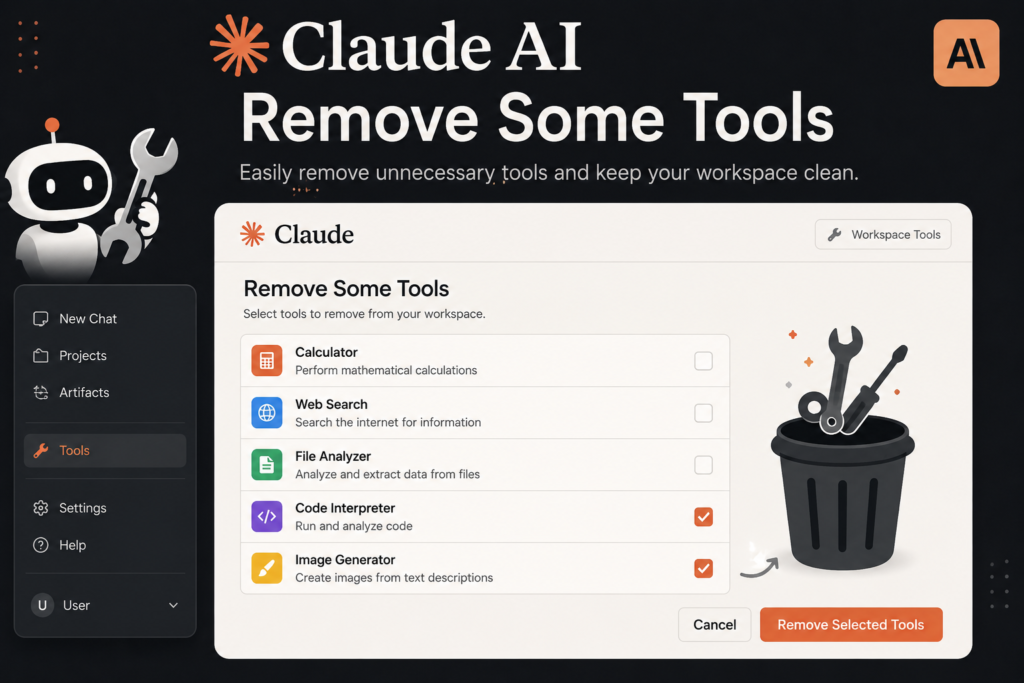
That’s it. It stays off until you flip it back on. I now leave it off by default and only turn it on when I’m asking about something time-sensitive, like news, prices, or “who’s the current CEO of X.”
2. Disabling Artifacts entirely
If you don’t build a lot of code, documents, or interactive stuff with Claude, the Artifacts panel can feel like clutter. Claude AI Remove Some Tools
- Click your profile icon in the bottom left sidebar.
- Go to Settings.
- Click Capabilities in the left menu.
- Find Artifacts and toggle it off.
I did this for about two weeks when I was mostly using Claude for writing emails and outlining blog posts. It genuinely made the interface feel calmer — no more side panel popping open for every little snippet.
Heads up though: if you’re on a Team or Enterprise plan, your admin might have locked some of these settings at the organization level, so you won’t see the toggle at all. That happened to me at work, and I had to ask our workspace admin to adjust it instead.
3. Removing or disabling connectors (MCP tools)
This is the one people miss most often. If you’ve connected things like Google Drive, Slack, or other third-party MCP apps, they show up as available tools any time Claude thinks they might help. Claude AI Remove Some Tools
To manage these:
- Go to Settings.
- Look for the Connectors or Integrations section (naming varies slightly depending on when you’re reading this, since Anthropic updates the UI fairly often).
- Turn off or disconnect anything you’re not actively using.
I had a Google Calendar connector sitting there from months ago that I’d totally forgotten about. Turning it off didn’t break anything — Claude just stopped bringing it up.
4. If you’re using Claude Code or Claude Desktop
This one’s a bit more technical, so skip it if you’re just using the regular claude.ai chat.
If you’re working through Claude Code or Claude Desktop with a config file, you can disable specific built-in tools like web search by adding them to a disabledBuiltinTools list in your settings. For example, adding “WebSearch” to that list stops Claude from making server-side search calls entirely. Combine that with an empty egress allowlist and Claude genuinely has no path to the internet — it can still read/write local files and run code, but that’s it.
I used this on a project where I didn’t want any outbound network calls happening at all, for privacy reasons while testing something with sensitive data. It worked exactly as expected — no surprise searches, no fetches, nothing leaving the sandbox.
The mistake I made (so you don’t have to)
Here’s where I actually messed up. I turned off Artifacts and web search at the same time, then a week later tried to ask Claude to “look up the latest version of a library and show me example code in a live preview.” Nothing happened the way I expected — no search results, no code preview, just a plain text answer.
I genuinely thought something was broken. Spent ten minutes convinced Claude had a bug. Turns out I’d just turned off the exact two tools I needed for that specific task and forgot about it.
Lesson learned: if you’re going to disable tools, it helps to actually remember which ones you turned off, especially if you use Claude for a mix of quick chats and more complex project work. I now keep a mental note (okay, actually a sticky note on my monitor) of what’s currently off.
When it actually makes sense to keep tools ON
I don’t want this to sound like “turn everything off and enjoy a minimalist Claude forever.” That’s not realistic for most people. Here’s when I keep things enabled: Claude AI Remove Some Tools
- Web search: any time I’m asking about current events, prices, product comparisons, or anything time-sensitive. Trying to get accurate info without search is like asking someone to answer from a slightly outdated encyclopedia.
- Artifacts: whenever I’m actually building something — a small web app, a chart, a document I want to iterate on visually.
- Connectors: if you genuinely use Slack, Drive, or task managers day to day, keeping those connected saves real time. I just don’t like having ones I never touch sitting there.
Common mistakes people make with this
A few things I’ve seen trip up other people (and myself):
- Disabling something org-wide when you only meant to disable it for yourself. On Team/Enterprise accounts, some settings apply to a whole workspace. Double check before you toggle anything if you’re not the account admin.
- Forgetting that toggles are per-device sometimes, not always synced. I had web search off on my laptop but it was still on on my phone app for a while. Not a huge deal, just mildly confusing until I checked both.
- Assuming “disabled” means “gone forever.” Every toggle I’ve used can be flipped back on in seconds. Nothing here is permanent or destructive, so there’s really no risk in experimenting.
- Not checking the Capabilities menu after an app update. Anthropic ships changes pretty often, and I’ve noticed new toggles appear in Settings every few months.
Final thoughts
It’s closer to decluttering a desk — everything’s still there when you need it, it’s just not sitting in your way when you don’t.
For me, the biggest win was just turning off web search by default and only flipping it on when the question actually needed current info. Small change, but it made every quick conversation feel snappier and less noisy with citations I didn’t ask for.
If you haven’t poked around in Claude’s Settings > Capabilities menu yet, it’s worth five minutes. You might find a connector you forgot you’d added, or realize Artifacts has been popping open for tasks that never needed it.








Leave a Reply