


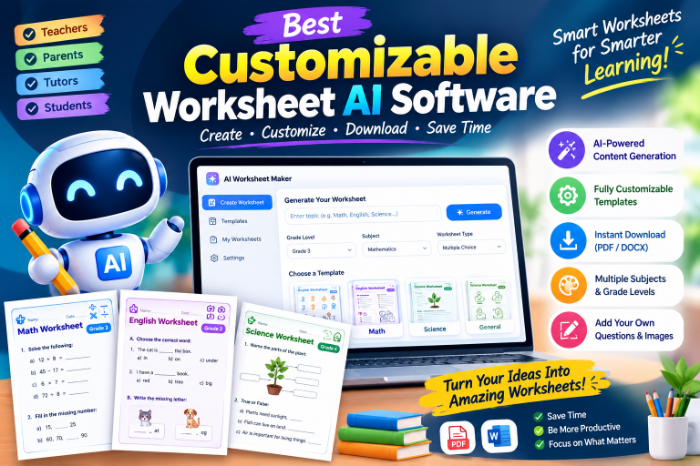
Best Customizable Worksheet AI Software
Best Customizable Worksheet AI Software (Tested by an Actual Tired Teacher-Blogger)
It was a Sunday night, 9:47 PM, and I had a fraction worksheet due for my niece’s tutoring session the next morning. I’d already spent 40 minutes scrolling through Pinterest, opening seventeen tabs of “free printable worksheets,” and downloading three PDFs that turned out to be watermarked or just… wrong for her level.
That’s the night I gave up on hunting for pre-made worksheets and started actually testing AI tools that let you build your own from scratch. Custom questions, custom difficulty, custom format — the whole thing, done in minutes instead of an entire evening.
I’ve now used a handful of these tools across tutoring sessions, a part-time classroom gig, and even making practice sheets for my own kid. Some were genuinely great. A couple wasted my time. Here’s what actually works, what to avoid, and how to use these tools without ending up with a worksheet that looks like it was made by a robot (because, well, it was — but it shouldn’t look like it).
Why “customizable” actually matters here
A lot of worksheet generators just spit out generic templates. You type “addition worksheet” and get the same boring layout everyone else gets.
What you actually want is something that lets you:
- Set the exact difficulty level (not just “easy/medium/hard”)
- Add your own context or theme (dinosaurs, sports stats, whatever keeps a kid engaged)
- Control the number of questions and layout
- Export in a format you can actually print or edit later
- Fix mistakes without starting over
That last one bit me early on. I generated a worksheet, found a typo in question 6, and the tool I was using made me regenerate the entire sheet instead of just editing that one line. Fifteen new questions, none of which matched what I’d already reviewed with the student. Lesson learned fast: check if a tool lets you edit inline before you commit to it.
The tools I actually tried
1. Twee
I stumbled onto Twee through a teacher Facebook group, and it’s become my go-to for language-based worksheets — reading comprehension, vocabulary, grammar drills. You paste in a topic or even a short text, and it generates questions around it.
What surprised me: it’s genuinely good at matching reading level to age group. I asked for a comprehension worksheet for a 9-year-old about the water cycle, and it didn’t dump a textbook paragraph on the kid — it actually simplified the language.
Downside — it’s more language-arts focused. Math worksheets feel like an afterthought.
2. Eduaide.ai
This one felt built by someone who’s actually taught a class before, not just a coder who read about teaching. It covers a huge range of subjects and lets you pick standards (like Common Core) if that matters for your situation.
I used it to build a science worksheet on ecosystems, and the customization panel let me choose question types — multiple choice, short answer, fill-in-the-blank — mixed on the same sheet. That mix is something I never got right manually; I’d always end up with all multiple choice because it’s faster to write.
One thing to watch: the free tier caps how much you can generate per month. I hit that wall halfway through a unit plan and had to wait or upgrade.
3. MagicSchool AI
I went in skeptical because of the name (sounds like a kids’ toy), but this turned out to be one of the more complete platforms. It’s not just a worksheet generator — it has dozens of tools bundled in — but the worksheet-specific one lets you set grade level, subject, and even tone.
The tone setting is oddly useful. I made a worksheet with a “playful” tone for a 7-year-old and a “formal” tone for an 8th grader’s essay-prep sheet, and the difference in phrasing was noticeable, not just cosmetic.
It does have a bit of a learning curve because there’s so much packed into the dashboard. First time I logged in, I spent ten minutes just figuring out where the worksheet tool even was.
4. Conker
If you want something laser-focused on quizzes and worksheets without a hundred other features cluttering the screen, Conker is worth a look. It lets you generate from a topic, from your own text, or even from a YouTube video link (which, honestly, blew my mind the first time it worked correctly).
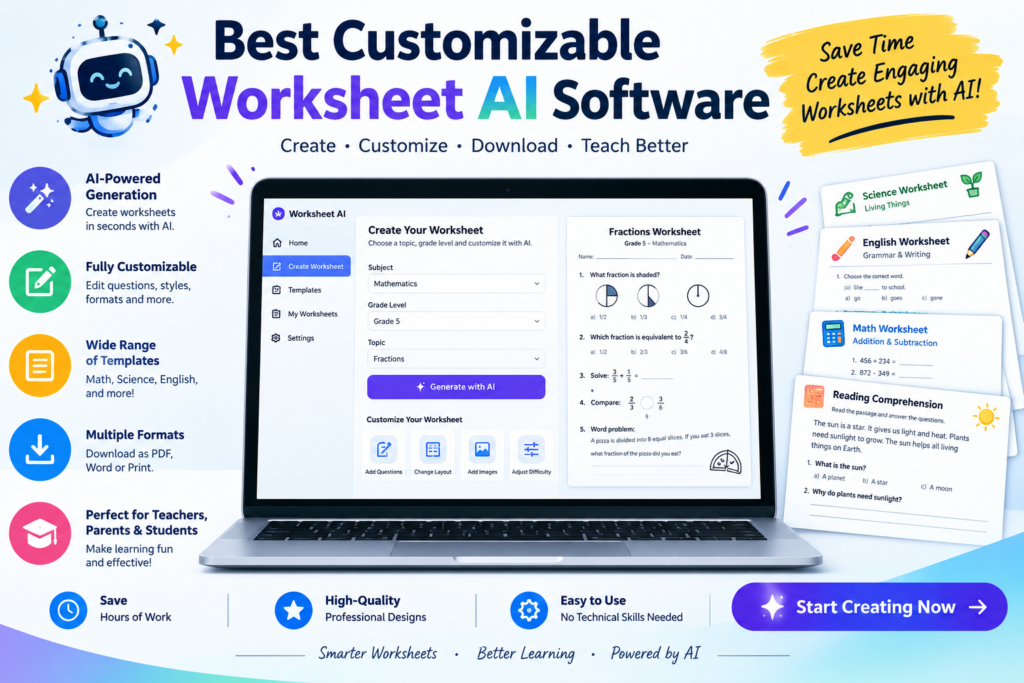
I tested the YouTube feature with a short documentary clip about volcanoes, and it built a genuinely usable comprehension worksheet from the transcript. Not perfect — one question referenced something that was barely mentioned in the video — but a solid starting point I could tweak.
5. ChatGPT (the manual route)
I’d be lying if I said I didn’t just use ChatGPT directly for a lot of this too. It’s not a dedicated “worksheet” tool, but if you’re specific with your prompt, you can get surprisingly customizable results — and then paste the output into Google Docs or Canva to format it nicely.
My prompt template that actually works:
“Create a [subject] worksheet for a [grade level] student. Include [number] questions, mixing [question types]. Theme it around [interest, e.g., soccer, space, cooking]. Keep the language at a [reading level] level.”
The catch: you have to format it yourself afterward, since it just gives you plain text. That’s an extra 10-15 minutes I didn’t always have, which is why I eventually moved to dedicated tools for anything I needed printed and ready to go.
Step-by-step: how I actually build a worksheet now
Here’s the process I’ve settled into after all that trial and error:
- Pick the tool based on subject. Twee for reading/language stuff, Eduaide or MagicSchool for anything science/math/mixed, Conker if I have source material like a video or article.
- Write a specific prompt, not a vague one. “Math worksheet” gets generic results. “Two-digit addition with regrouping, 10 questions, word-problem format, using sports scores as examples” gets something I can actually use.
- Generate, then read every question before printing. I cannot stress this enough — I once didn’t check a generated answer key and it had the wrong answer for question 3. A kid pointed it out before I did, which was embarrassing.
- Edit inline if the tool allows it. Don’t regenerate the whole sheet for one bad question if you don’t have to.
- Export as PDF for printing, or keep it editable if you’ll reuse the template later.
- Save a copy of your prompt. This one’s a game changer — if a worksheet worked well, keeping the exact prompt means you can recreate similar ones fast for the next topic.
Mistakes I made so you don’t have to
- Trusting the answer key blindly. AI-generated answer keys are usually right, but “usually” isn’t “always.” Always double-check math and any answer requiring nuance.
- Being too vague with prompts. Vague input equals vague, generic output. Specificity is everything.
- Ignoring the export format. I made a beautiful worksheet once that exported as a weirdly formatted Word doc with broken spacing. Always preview before printing a full class set.
- Using one tool for everything. No single tool does math, reading, and science equally well. I stopped expecting one app to be my entire toolkit.
- Forgetting accessibility. If you’re making worksheets for kids with reading difficulties or younger learners, check font size and spacing options — not every tool defaults to something readable.
A quick real-world example
Last month I needed a worksheet on state capitals for a 10-year-old who gets bored easily. I used Eduaide, set the difficulty to match her level, added “quiz show format” as a theme note, and got a worksheet that framed questions like a game show round. She actually asked to do a second one. That’s the real test, honestly — not whether the tool worked, but whether the kid wanted to keep going.
Final thoughts
None of these tools are magic. They still need a human checking the output, tweaking the wording, and making sure the difficulty actually matches the student in front of you. But compared to spending an hour hunting for a printable that’s “close enough,” building a custom one in ten minutes with the right tool is just a better use of time.
If I had to pick one to start with today, I’d say try Eduaide or MagicSchool first if you’re covering a mix of subjects, and Twee if you’re mostly doing reading and language work. Then figure out your own prompt style — that’s really where the customization happens, not just in the settings menu.








Leave a Reply