


AI Assistants For Productivity
AI Assistants for Productivity: What Actually Saved Me Time (and What Didn’t)
Last spring I had 47 unread emails, a meeting transcript I never rewatched, and a to-do list that had quietly turned into a guilt list.
So I did what everyone seems to do. I signed up for three AI tools in one afternoon and expected my life to get organized by dinner.
It didn’t. By evening I had more tabs open, more notifications, and a strange new habit of asking a chatbot questions I could have answered myself in ten seconds.
It took a few weeks of trial and error to figure out where AI assistants genuinely help and where they just add noise. Here’s what I learned, in case it saves you the detour.
What an AI assistant can realistically do for you
Let’s be honest about the limits first, because that’s where most people get disappointed.
An AI assistant is good at first drafts, summaries, sorting, and brainstorming. It’s decent at turning messy input into something tidy. It’s fast.
It’s not good at knowing your priorities, your history with a client, or what’s politically awkward in your office. It can also state wrong things confidently, so anything important needs a human check. Think of it as a quick, eager intern..
The tools I actually kept using
I tried plenty of them. These are the kinds of tools that earned a spot in my routine, and the tasks they suit.
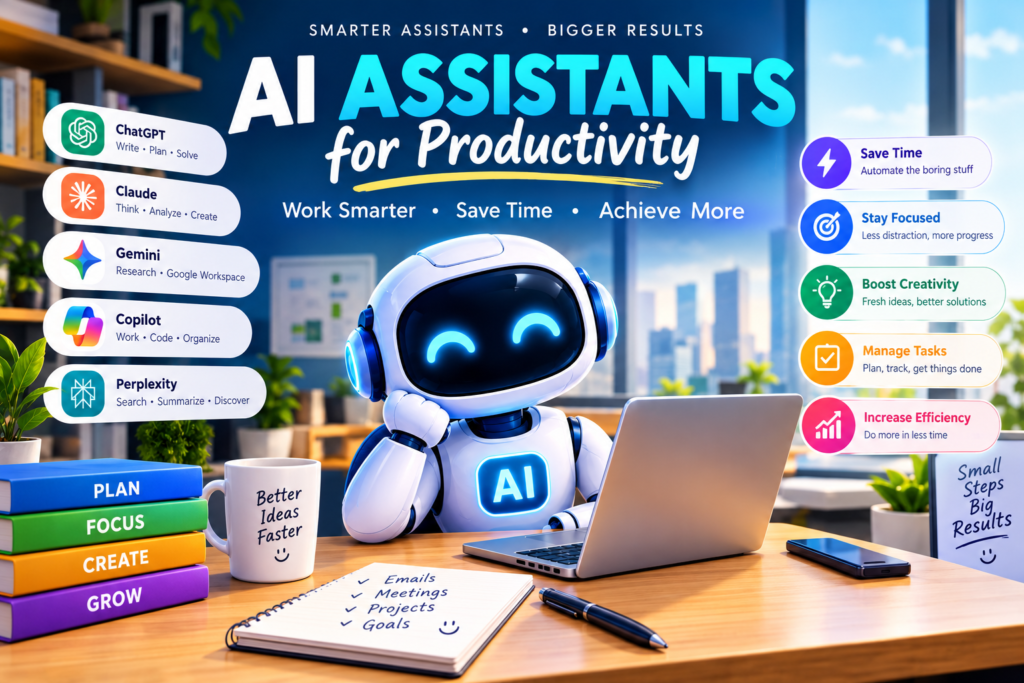
General chat assistants like ChatGPT, Claude and Google Gemini are the all-rounders. I use them for drafting, rewriting, summarizing long text and thinking through a problem out loud.
Microsoft Copilot and Gemini inside Google Workspace are handy if you already live in Outlook, Word, Docs or Gmail, since they work where your files are. Availability and features depend on your plan, so check what your account includes.
Notion AI is useful if your notes and projects already sit in Notion. It can summarize pages and pull action items from rough notes.
Meeting note tools like Otter.ai, Fireflies and the built-in transcription in Zoom, Google Meet and Teams save you from furious typing during calls. Always tell participants you’re recording, and check your company’s rules first.
Writing helpers like Grammarly catch tone and clarity problems in emails before you hit send.
Scheduling assistants like Reclaim.ai and Motion try to fit tasks around your calendar automatically. They helped some weeks and annoyed me others, which I’ll explain below.
Automation tools like Zapier or Make can connect apps so small repetitive jobs happen on their own, sometimes with an AI step in the middle.
Features and pricing shift constantly, so look at each tool’s current plans before paying for anything.
Where AI helped me the most
After weeks of experimenting, the biggest wins came from boring, repetitive stuff.
Email replies. I stopped staring at a blank reply box. I paste in the email, tell the assistant what I want to say in a sentence or two, and ask for a short, polite draft. I edit it and send.
Meeting summaries. I get a transcript, ask for key decisions, action items and who owns each one, and paste that into my notes.
Untangling a messy brain dump. When my head is full, I type everything I’m worried about in random order and ask the assistant to group it into categories and suggest what to do first. It’s oddly calming.
Research starting points. For a topic I know nothing about, I ask for a plain-language overview and a list of questions to look into. Then I verify the details elsewhere.
Repurposing content. I’ll turn rough meeting notes into a clean update for my team, or a long article into a few short bullet points.
My step-by-step setup for a lighter workday
This is the routine that finally stuck. You can copy it and adjust.
Step 1: Pick one problem, not ten. Ask yourself what eats the most time. Email? Meetings? Planning? Start with that one thing only.
Step 2: Choose one tool and stick with it for two weeks. Switching apps constantly is its own time sink. Give a tool a fair trial before you judge it.
Step 3: Write prompts like you’re briefing a coworker. Include the goal, the audience, the tone and the length. Write a friendly, three-sentence reply declining this meeting and offering Thursday instead” gets a usable one.
Step 4: Give it the context. Paste the email thread, the notes, the rough outline. The assistant can’t guess what it can’t see.
Step 5: Review everything before it leaves your hands. Check names, dates, numbers and tone.
Step 6: Save your best prompts. When something works, store it in a notes app. Reusing a good prompt is where the real time savings add up.
Step 7: Do a weekly check. Ask yourself honestly whether the tool saved time or just felt busy.
A few prompts that worked for me
Here are some starting points. Swap in your own details.
For emails: “Here’s an email I received. Write a short, friendly reply that agrees to the deadline but asks for one extra day. Keep it under 80 words.”
For meeting notes: “Here’s a transcript. List the decisions made, the action items with owners, and any open questions.” Group it by urgency and effort, and suggest a realistic order. I have about four focused hours a day.”
For overwhelm: “I have too many tasks. Ask me up to five questions to help me decide what matters most this week.”
Mistakes I made so you can skip them
Trusting facts without checking. Early on I let an assistant fill in a statistic for a report. Now I verify any number, date, quote or claim that matters.
Pasting sensitive information. It’s easy to forget that what you paste goes to a company’s servers. I now avoid sharing passwords, private client data, financial details and anything confidential. Read the privacy settings and your workplace policy before using AI with work material.
Letting the auto-scheduler run my life. One scheduling tool rearranged my calendar so aggressively that I lost my lunch break and my sense of control. Automation should support your plans, not replace your judgment.
Sending the first draft. AI drafts tend to sound polished but a bit generic. A reply that doesn’t sound like me confused a colleague once. Now I always tweak the wording so it sounds like I wrote it.
Collecting too many tools. For a while I had six assistants, each with its own login, notifications and subscription. Fewer tools, used well, beat a fancy stack every time.
Using AI to avoid thinking. If I asked the assistant to decide everything, my own clarity got worse. It works best when I bring the priorities and it handles the grunt work.
When an AI assistant is the wrong choice
Some things are better left to you.
Sensitive conversations, like giving hard feedback or handling a conflict, need a human voice. A drafted message can help you organize your thoughts, but the words should be yours.
High-stakes legal, medical or financial decisions should go to qualified professionals, not a chatbot.
And tasks that take two minutes by hand often take longer once you set up the prompt. Use judgment.
A quick way to tell if a tool is worth keeping
After two weeks, ask yourself:
- Did it save me a noticeable amount of time each week?
- Did I have to fix a lot of its output?
- Do I feel less stressed, or just more distracted?
If the answers are mostly no, cancel it. There’s no prize for owning the most subscriptions.
Final thoughts
The biggest shift for me wasn’t a particular app. It was changing the question from “how do I do everything faster?” to “which small, annoying tasks can I hand off?”
Start with one repetitive job, give a single tool a fair trial, and keep yourself in charge of the final result. Some weeks it will feel like magic, and other weeks it will feel like babysitting, and both are normal.
If you try the prompts above, adjust them until they sound like you. That small tweak is what turns a generic assistant into something that actually fits your day.







Leave a Reply