


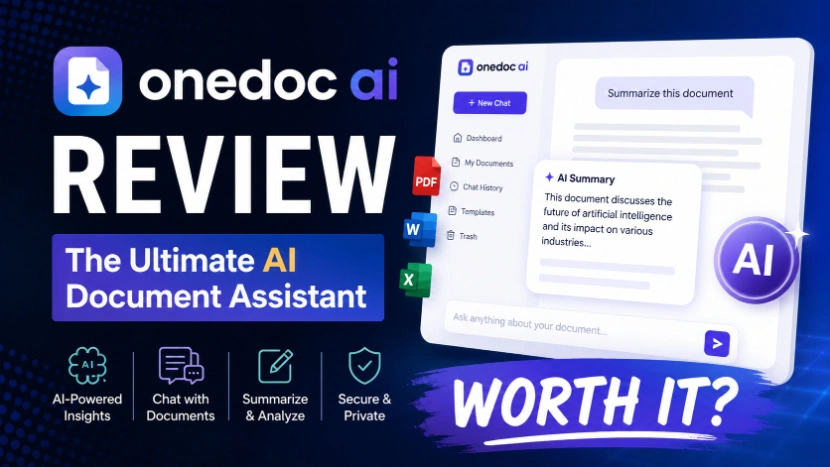
Onedoc AI Review
OneDoc AI Review: I Used It to Build a Client Proposal at 11PM So You Don’t Have To Panic-Google This Later
Last month I had a client call scheduled for 9AM and absolutely nothing ready to show them. No deck, no proposal, not even a decent outline. Just a blinking cursor and that special kind of dread you get when you know you should’ve started this two days ago.
Something that mattered. But at 11PM with coffee going cold next to my keyboard, “curiosity” turned into “let’s just try this and see what happens.” Onedoc AI Review
That night ended up being a pretty good stress test for the tool, honestly. So here’s the real breakdown — what worked, what annoyed me, and whether I’d trust it again for something client-facing.
So What Actually Is OneDoc AI?
Strip away the marketing language and OneDoc AI is basically a browser-based tool that turns a topic or a rough idea into a finished, interactive document. Not a plain PDF — think more like a webpage-style document with clickable buttons, embedded videos, quizzes, and forms baked right in.
You type in what you want (a proposal, an ebook, a report, a training guide, whatever), and it drafts the structure and content for you. Then you edit it inside a visual builder, add interactive bits if you want them, and publish it as a shareable link or embed.
It’s built by the same crowd that puts together these product-launch style tools you see with countdown timers and “OTO” upgrade pages — which honestly made me a little skeptical going in. That kind of launch marketing usually oversells things. More on that later.
The 11PM Proposal: How It Actually Went
Here’s roughly what I did, step by step, in case you want to try the same workflow:
Step 1: Start with a real prompt, not a vague one. My first attempt was lazy — I typed “marketing proposal” and got back something generic enough to be useless. Once I gave it actual context (client industry, the specific service I was pitching, rough budget range, tone I wanted), the draft got noticeably more usable. Lesson learned fast: garbage in, garbage out, same as any AI writing tool.
Step 2: Let it build the skeleton, then rewrite the parts that matter. The AI-generated draft was fine as a starting point — decent structure, sections in a sensible order, nothing embarrassing. But some of the language felt a little stiff and generic, the kind of copy that could apply to literally any client. I rewrote the intro and the pricing section myself because those two parts needed my actual voice, not a template voice.
Step 3: Add the interactive pieces. This part was genuinely the most useful thing about the whole experience. I dropped in a short Loom-style video explaining my approach, added a simple button linking to a calendar booking, and included a one-question poll asking which service they were most interested in. None of that would’ve happened if I’d just made a normal PDF in Google Docs.
Step 4: Preview on mobile before sending. Almost skipped this. Glad I didn’t. One of my buttons was overlapping some text on the mobile view, which I never would’ve caught on desktop.
Step 5: Publish and send the link. Instead of attaching a PDF, I sent a link. The client opened it, and I could actually see when they opened it and roughly how far they scrolled, thanks to the built-in analytics.
The client’s reaction the next morning was genuinely better than I expected. They mentioned the video specifically, which never happens with a static PDF proposal.
What Impressed Me
The interactivity is the real selling point. Quizzes, embedded video, booking links, forms — this is the stuff that actually separates it from just making a nice-looking doc in Canva. A regular PDF sits there. This thing responds when someone clicks on it.
No design skill required, and it shows. I’m not a designer. Left to my own devices, my documents usually look like a ransom note. The templates here kept things clean without me fighting with alignment and fonts for twenty minutes. Onedoc AI Review
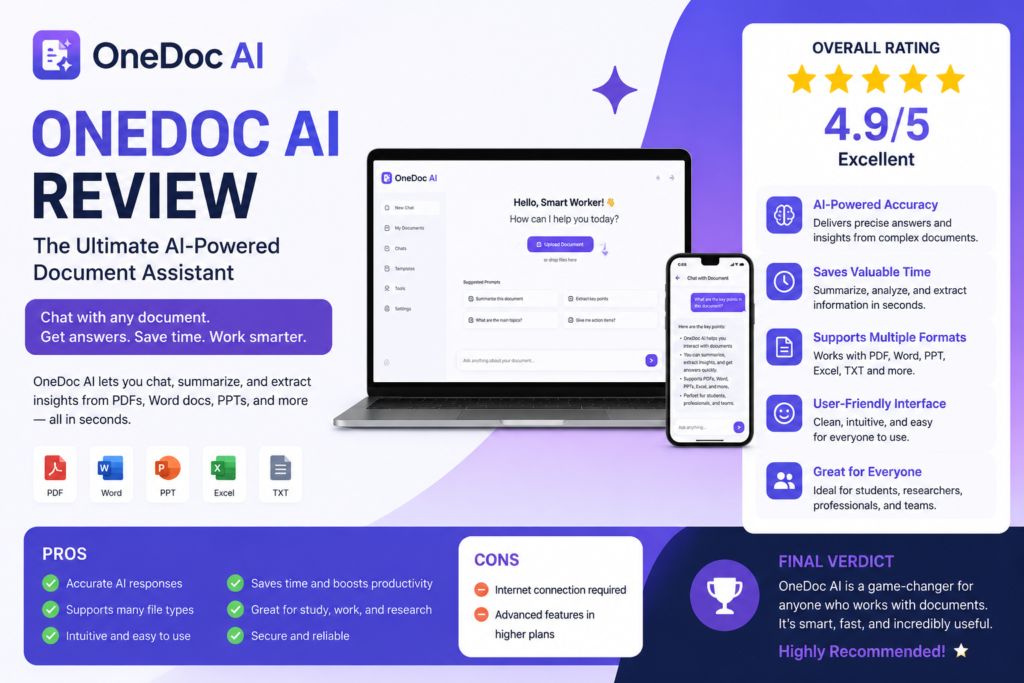
The lead capture piece is smart for certain use cases. If you’re building something like a lead magnet or gated ebook, being able to show a preview and then require an email to unlock the rest is a legitimately useful feature, not just filler.
Nothing to install. Fully browser-based, so it worked the same on my laptop and when I checked it later on a borrowed machine at a coffee shop.
What Bugged Me (Be Honest With Yourself Before Buying)
The AI writing needs editing, always. If you’re expecting to type three words and get client-ready copy, you’ll be disappointed. It’s a solid first draft generator, not a replacement for actually knowing your client and your offer.
Watch the pricing tiers carefully. Like a lot of these tools launched through affiliate-style funnels, there’s a base price and then a stack of upgrade offers (OTOs) that get pitched to you right after checkout — more templates, more AI credits, higher document limits, that kind of thing. Read exactly what’s included in the base plan before you assume a feature is there. I almost missed that certain analytics features were tied to a higher tier.
Testimonials on the sales page felt inflated. I saw a claim about someone growing their business “10x in 30 days” using this tool, and I’d take that kind of number with a big grain of salt. A tool can make your documents look better and save you time — it can’t guarantee business results, and no software honestly can.
It’s not built for long, heavily formatted documents. If you need something like a 40-page technical report with strict formatting rules, footnotes, and citations, this isn’t the right tool. It shines for shorter, punchier, conversion-focused documents — proposals, one-pagers, lead magnets, short guides. Onedoc AI Review
Common Mistakes I’d Warn You About
- Publishing the first AI draft without reading it fully. I caught two factual mix-ups in my own first draft where the AI assumed details that weren’t true for my client. Always read every line before sending.
- Overloading a document with interactive elements. It felt cluttered. Pick one or two interactive elements that actually serve the reader’s next step.
- Forgetting the mobile preview. Already mentioned this, but it’s worth repeating because it’s the mistake I see people make most with any document tool, not just this one.
- Assuming the free or lower tier includes everything shown in the demo video. Marketing demos tend to show the full feature set. Double check what your actual plan unlocks.
Who This Actually Makes Sense For
If you’re a freelancer or small agency sending proposals, a coach building lead magnets, or someone who runs webinars and wants a better follow-up document than a boring PDF, this fits pretty naturally into that workflow. Sales teams who send a lot of one-off pitch documents would probably get real mileage out of it too.
If you just need a plain document with clean formatting — a resume, a simple report, an internal memo — you honestly don’t need something this interactive. A regular Word doc or Google Doc does that job fine, and there’s no reason to pay for features you won’t use.
Final Thoughts
I went in expecting another overhyped “AI does everything” launch product, and what I actually got was a decent, genuinely useful tool for a specific job: turning a rough idea into a polished, trackable, interactive document without burning a whole evening on formatting.
It’s not magic. The AI writing still needs a human pass. The pricing page needs a careful read. And it’s not the right fit for every kind of document. But for that 11PM proposal situation, it saved me from sending something embarrassing, and the client noticed the difference. That’s about as honest an endorsement as I can give any tool — it did the job it promised, under real pressure, without me babysitting it the whole way through. Onedoc AI Review
If you’re on the fence, I’d try building one real document with it — something you actually need, not a test file — before deciding if it earns a spot in your regular toolkit.








Leave a Reply